

Fixing a Time Sync Error in EXM
If you're seeing a time sync error when using EXM, it means your system clock is out of sync with Windows. This can prevent certain features from working correctly. Fortunately, it's a quick fix.
How to Fix It
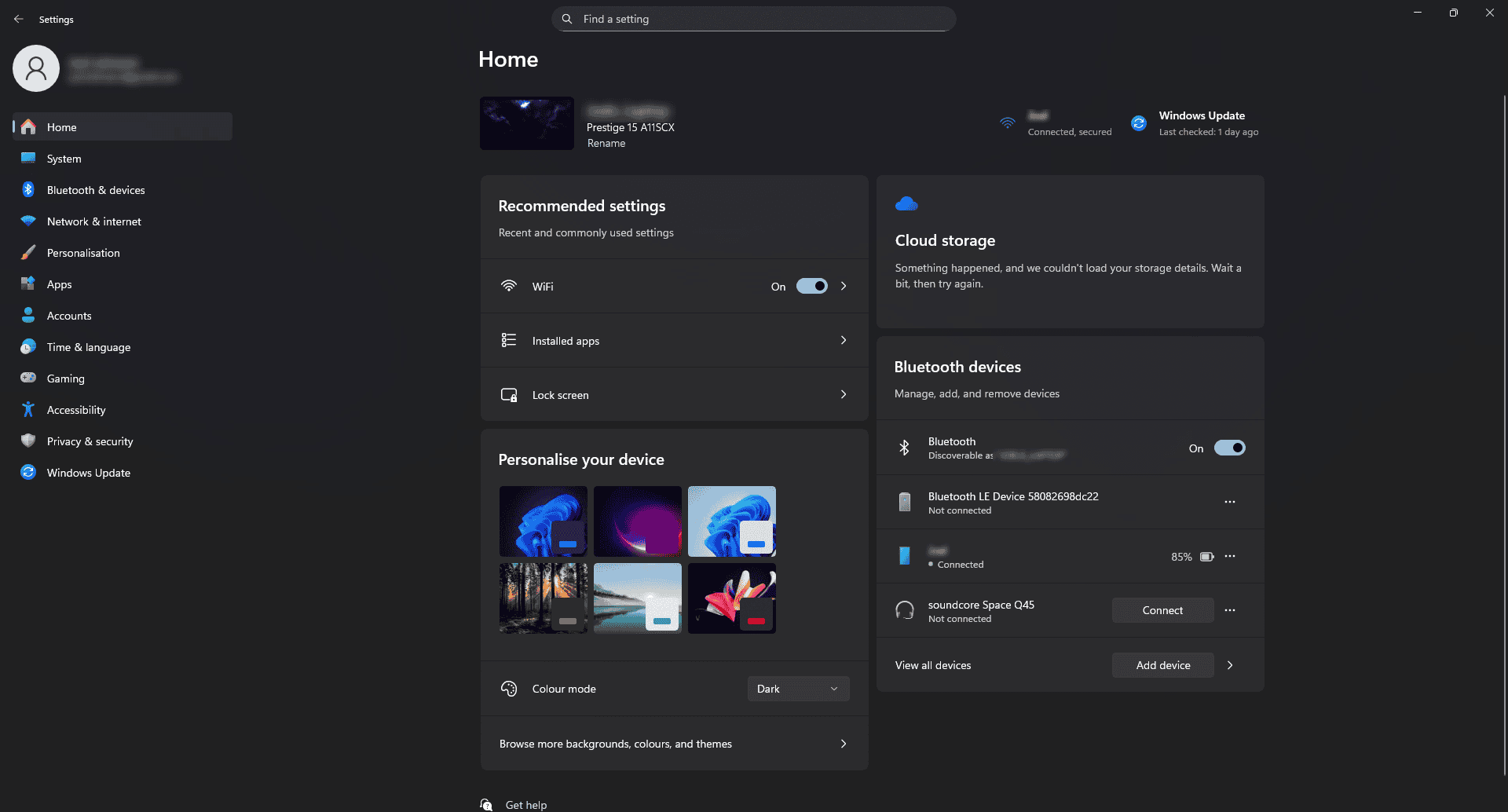
Open your Windows Settings by pressing Windows + I.
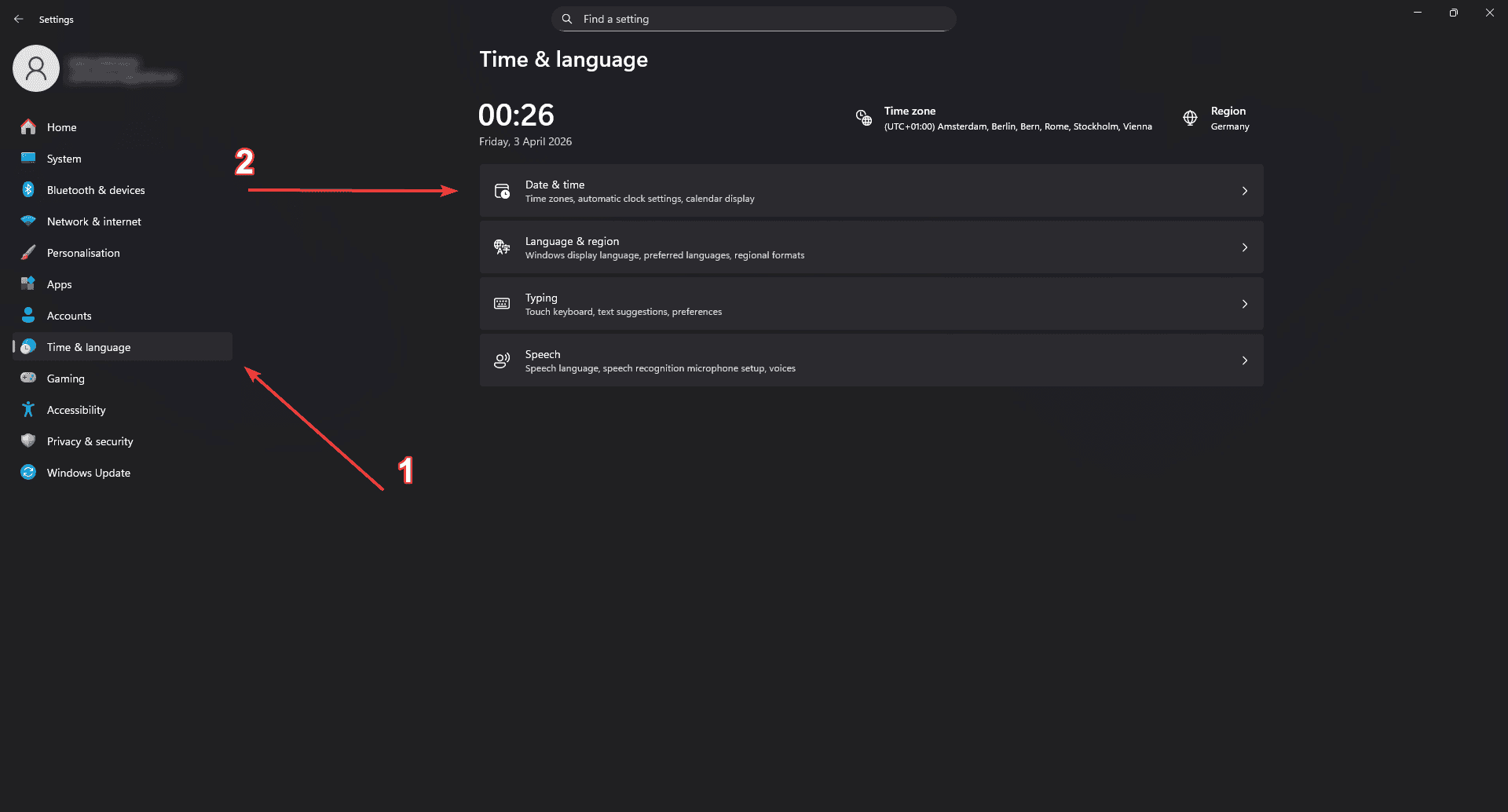
Navigate to Time & language and then select Date & time.
Click the Sync now button under the "Additional settings" section.
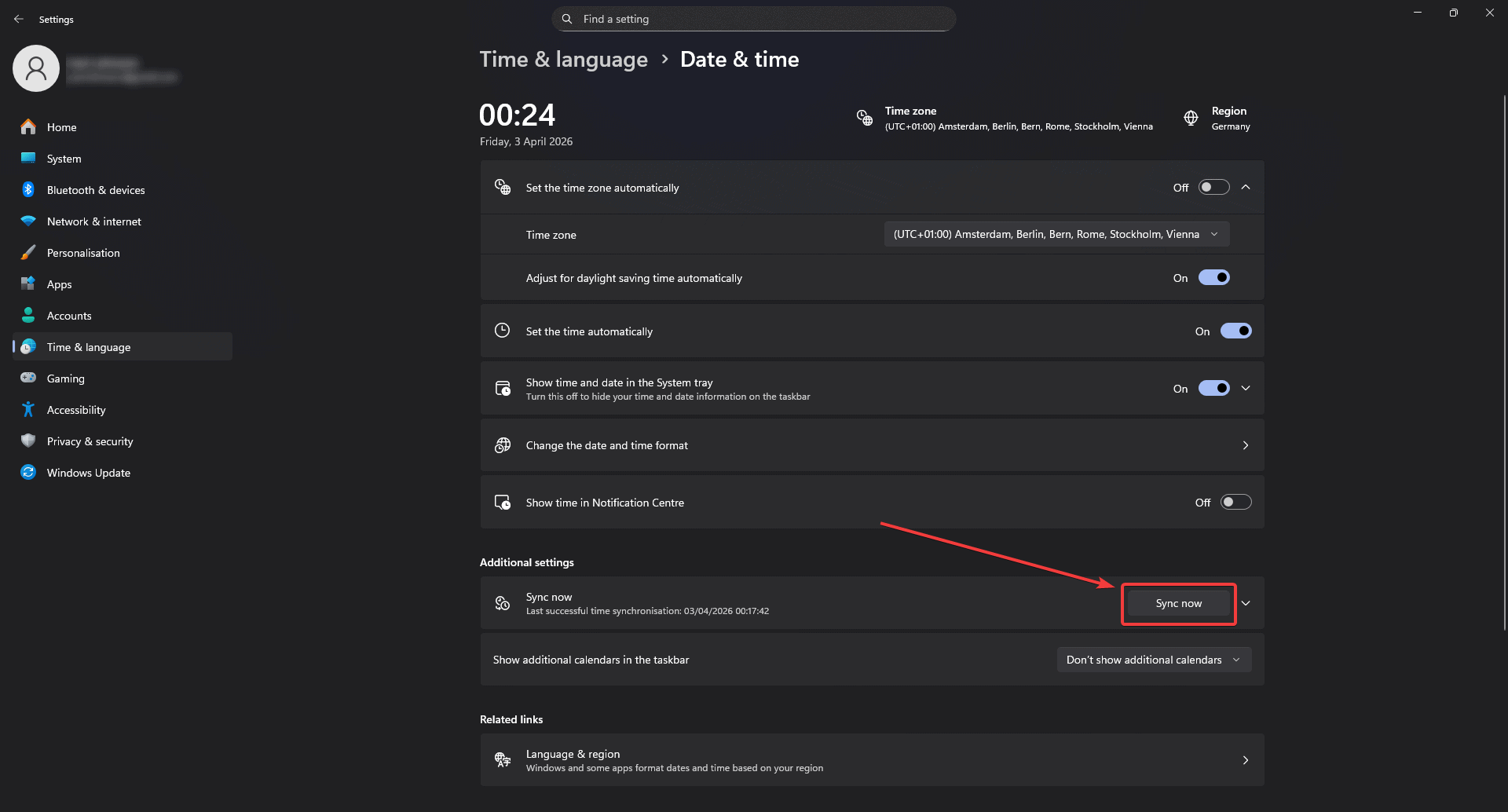
Wait a moment for Windows to sync your clock with the time server.

Relaunch EXM and the error should be resolved.
Still Seeing the Error?
If the sync button doesn't resolve the issue, make sure Set time automatically is toggled on at the top of the Date & time settings page. If it was already on, try toggling it off, waiting a few seconds, and toggling it back on before clicking Sync now again.
Need Help?
If you have any questions or run into anything unexpected, our support team is ready to help at support@exmtweaks.com.