

If your PC began having issues after a recent change, reverting to a restore point can help return Windows to an earlier working state. A restore point saves important system settings, drivers, and configuration data from a specific moment in time, giving you a way to roll back system-level changes without fully reinstalling Windows.
This can be useful if you are troubleshooting performance issues, software conflicts, instability, or other unexpected behavior.
What a Restore Point Does
A restore point helps roll back:
system settings
registry changes
installed drivers
certain Windows configuration changes
some recently installed programs or updates
A restore point does not usually remove personal files such as documents, pictures, or videos. However, it can affect apps, drivers, and settings that changed after that restore point was created.
How to Revert to a Restore Point
Open the Start Menu
Search for Create a restore point
Open the System Properties window
Click System Restore
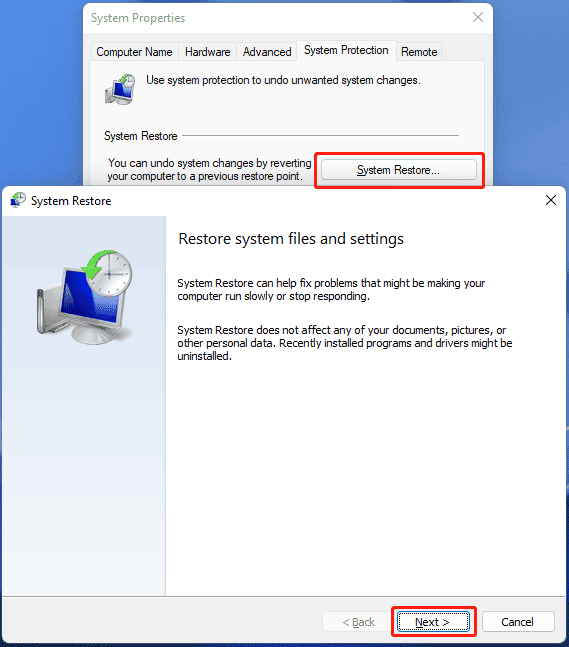
Click Next
Select the restore point you want to use
Click Next
Review the details
Click Finish to begin the restore
Your PC will restart and begin restoring the system to that selected point.
How to Choose the Right Restore Point
When choosing a restore point, try to select one that was created:
before the issue started
before major tweaks or system changes were made
before installing software, drivers, or updates you suspect may have caused the problem
If multiple restore points are available, choose the one that most closely matches the point before the issue appeared.
Important Notes
Your PC will restart during the restore process
The process can take some time depending on your system
Installed apps, drivers, or updates added after that restore point may be removed
Personal files are typically not affected, but creating a backup first is still strongly recommended
Once the restore begins, it should not be interrupted
When to Use a Restore Point
Reverting to a restore point is a good option when:
your PC became unstable after a recent change
you want to test whether a system issue is related to a recent tweak or install
Windows behavior changed unexpectedly
you need to roll back to a previously working configuration